Run Waterfall Node Mainnet in Docker (v2)
Which version do I need?
This page describes the second-generation Docker image
(registry.waterfall.network/waterfall/protocol/docker:2-mainnet). It adds stake
delegation, key import/export, validator labels and configurable ports.
The first-generation image (:mainnet) is still documented in
Run Waterfall Node Mainnet in Docker.
If you already run a v1 node, follow Migrate a Docker node from v1 to v2 instead of this page — it keeps your validators and your synchronized database.
What is new in v2
Features
- Stake delegation. Ownership of the stake, of the rewards, and the right to exit or withdraw can be split between several addresses. See Delegate stake.
- Key import and export. Keys generated elsewhere (for example by
wf-cli) can be imported into a running node, and the validator list can be exported for backup. See Import keys and Export keys. - Validator labels. Validators can be grouped under a label and addressed as a group. See Label validators.
- Configurable ports. Ports are read from
GWAT_COMMANDSandCOORDINATOR_COMMANDS, and the helper scripts follow them. See Ports. - One volume instead of three. The whole data directory is mounted as a single volume.
- More detail in
status.sh— client versions, chain heads, labels, delegation rules and a comparison of the local configuration against on-chain state. - Snapshot seeding built in. The node downloads, verifies and unpacks a published snapshot itself, with nothing to fetch or extract by hand and a rollback if it goes wrong. See How to sync faster?.
New commands
| Command | Purpose |
|---|---|
import.sh |
Import externally generated keys |
export.sh |
Export the validator list |
label.sh |
Assign a label to validators |
head.sh |
Live view of coordinator and verifier heads |
snapshot.sh |
Seed or re-seed the chain databases from a published snapshot |
reset_slashing_protection.sh |
Start the validator database afresh to reclaim disk space |
verifier_passwords.sh |
Check and repair the passwords of the verifier keys |
Install Docker
You need to install Docker, which will allow you to perform further steps consistently across any operating system. You can install Docker for your operating system using the following links:
Requirements
Hardware Requirements
1 Validator 1 Node
Minimum Requirements
- CPU (Cores):
2.0 - Memory (GiB):
8.0 - SSD Disk (GiB):
512.0 - Bandwidth (Mb/s):
20.0 - Traffic approximately
2.0TB per month
Recommended Requirements
- CPU (Cores):
4.0 - Memory (GiB):
12.0 - SSD Disk (GiB):
512.0 - Bandwidth (Mb/s):
20.0 - Traffic approximately
2.0TB per month
32 Validators 1 Node
Minimum Requirements
- CPU (Cores):
4.0 - Memory (GiB):
12.0 - SSD Disk (GiB):
512.0 - Bandwidth (Mb/s):
20.0 - Traffic approximately
6.0TB per month
Recommended Requirements
- CPU (Cores):
8.0 - Memory (GiB):
16.0 - SSD Disk (GiB):
512.0 - Bandwidth (Mb/s):
20.0 - Traffic approximately
6.0TB per month
256 Validators 1 Node
Minimum Requirements
- CPU (Cores):
8.0 - Memory (GiB):
16.0 - SSD Disk (GiB):
512.0 - Bandwidth (Mb/s):
20.0 - Traffic approximately
6.0TB per month
Recommended Requirements
- CPU (Cores):
16.0 - Memory (GiB):
32.0 - SSD Disk (GiB):
512.0 - Bandwidth (Mb/s):
20.0 - Traffic approximately
6.0TB per month
Windows
- For the Windows operating system, you need to use all of the commands in the PowerShell terminal.
MacOS on arm
The image is built for linux/amd64 and runs under emulation on Apple Silicon, so every command
below passes --platform linux/amd64. We recommend enabling the following settings:
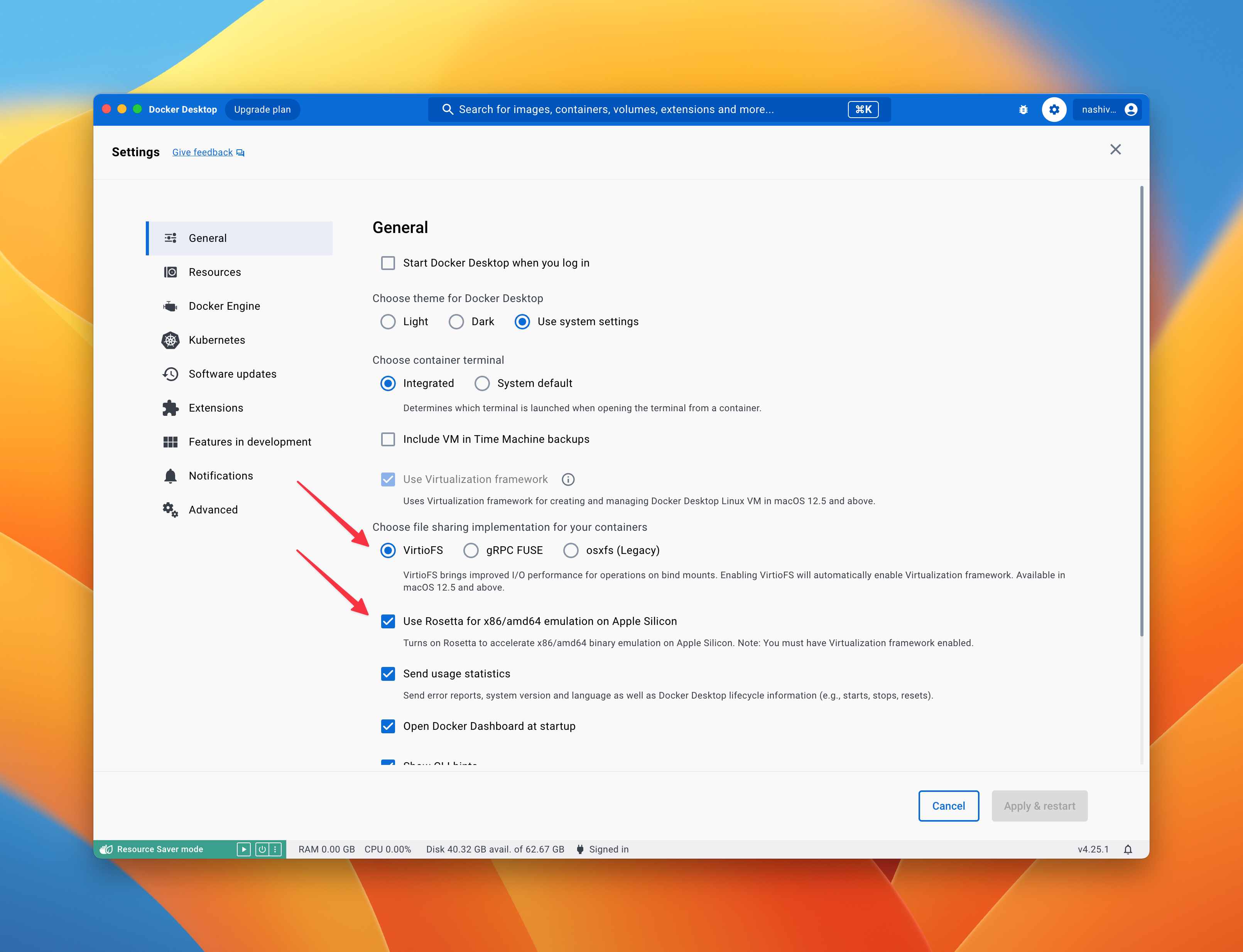
Login to private registry
The source code for Waterfall is currently closed (it will be opened after a security audit), so the source code and images are stored in a private repository. To access the private Docker image registry, you need to log in. Execute the following command in the terminal:
docker login -u public -p glpat-ZNWLTnqqcG6HhXKqJQ5yxm86MQp1OjF4CA.01.0y0zqu5nt registry.waterfall.network
Pull image
Download image from the private registry, where you logged in on the previous step. Use the latest Docker image that contains all the necessary software to run the node. To do this, you need to execute the following command in the terminal:
docker pull registry.waterfall.network/waterfall/protocol/docker:2-mainnet
Synchronize the time on your computer
Please synchronize the time on your computer for correct validator operation and proper node functionality.
sudo sntp -sS time.apple.com
Run Node
Execute the following command in the terminal:
cd ~
Executing the following command in the terminal:
docker run --platform linux/amd64 --name wf -d --restart unless-stopped -p 4000:4000 -p 13000:13000 -p 12000:12000/udp -p 30303:30303 -p 30303:30303/udp -p 9545:9545 -p 9546:9546 -v $PWD/.wf:/opt/wf/data registry.waterfall.network/waterfall/protocol/docker:2-mainnet
- the generation of coordinator and verifier keys
- keys are imported into the node wallets
- the node starts up
- The database data is stored in the home directory
~/.wf
One volume
v2 mounts the whole data directory as a single volume (-v $PWD/.wf:/opt/wf/data).
The v1 image used three separate volumes for logs, gwat and coordinator.
The single volume is required — the config directory that holds the validator list
lives next to them and would otherwise be lost when the container is removed.
The container is kept
--restart unless-stopped brings the node back after a reboot or a Docker daemon
restart. It cannot be combined with --rm — Docker rejects that outright — and --rm
would also throw away the container's anonymous volume on every stop. Use
docker stop wf / docker start wf for routine stops, and docker rm wf only when you
are about to create a new container from a newer image.
On Linux you can instead use host networking, which opens all node ports but keeps the API ports unreachable from outside the machine:
docker run --platform linux/amd64 --name wf -d --restart unless-stopped --network host -e GWAT_COMMANDS="--http.addr=127.0.0.1 --ws.addr=127.0.0.1" -v $PWD/.wf:/opt/wf/data registry.waterfall.network/waterfall/protocol/docker:2-mainnet
Ports
| Port/protocol | Firewall rule | Reason/caveats |
|---|---|---|
| 9545/TCP | Block all traffic. | This is the JSON-RPC port for your verifier node's Query API. You (and apps) can use this port to check verifier node status, query verifier-layer blockdag data, and even submit transactions. This port generally shouldn't be exposed to the outside world |
| 3500/TCP | Block all traffic. | This is the JSON-RPC port for your coordinator node's Query API. You (and apps) can use this port to check coordinator node status and query consensus-layer chain data. This port generally shouldn't be exposed to the outside world. |
| 4000/TCP | Block all traffic. | Your validator uses this port to connect to your coordinator node via gRPC. Inbound and outbound traffic should be allowed through this port only if your local validator is connecting to a remote coordinator node. |
| */UDP+TCP | Allow outbound traffic. | To discover peers, Coordinator's node dials out through random ports. Allowing outbound TCP/UDP traffic from any port will help Coordinator find peers. |
| 13000/TCP | Allow inbound and outbound traffic. | After we discover peers, we dial them through this port to establish an ongoing connection for libp2p and through which all gossip/p2p request and responses will flow. |
| 12000/UDP | Allow inbound and outbound traffic. | Your coordinator node exposes this UDP port so that other Waterfall nodes can discover your node, request blockdag data, and provide blockdag data. |
| 30303/TCP+UDP | Allow inbound and outbound traffic. | 30303/TCP is your verifier node's listener port, while 30303/UDP is its discovery port. This rule lets your verifier node connect to other peers. Note that some clients use 30301 by default. |
| 9546/TCP | Block all traffic. | Verifier Websocket API Endpoint |
If you want to change the ports, add the following environment variables
GWAT_COMMANDS="--port 30304 --http.port 9445 --ws.port 9446"
COORDINATOR_COMMANDS="--rpc-port 4001 --p2p-tcp-port 13001 --p2p-udp-port 12001"
docker run --platform linux/amd64 --name wf -d --restart unless-stopped -e GWAT_COMMANDS="--port 30304 --http.port 9445 --ws.port 9446" -e COORDINATOR_COMMANDS="--rpc-port 4001 --p2p-tcp-port 13001 --p2p-udp-port 12001" -p 4001:4001 -p 13001:13001 -p 12001:12001/udp -p 30304:30304 -p 9445:9445 -p 9446:9446 -v $PWD/.wf:/opt/wf/data registry.waterfall.network/waterfall/protocol/docker:2-mainnet
Unlike v1, the helper scripts in v2 read the ports back out of these variables, so
status.sh and the other commands keep working after you change them — including
--grpc-gateway-port, which the scripts use to reach the coordinator.
How to sync faster?
A node started from scratch replays the chain from the genesis block, which takes days. To skip that, seed it from the latest published snapshot. The node downloads, verifies and unpacks it itself, so there is nothing to fetch or extract by hand:
-
Download and unpack. This runs while the node keeps working, and an interrupted transfer resumes where it stopped rather than starting over:
docker exec -it wf /opt/wf/sh/snapshot.sh download -
Switch over. This stops the node, swaps in the new databases and starts it again — a directory rename, so it takes seconds:
docker exec -it wf /opt/wf/sh/snapshot.sh apply -
Check that the node picks up the new state:
docker exec -it wf /opt/wf/sh/status.sh -
Once you are satisfied, free the space taken by the databases it replaced:
docker exec -it wf /opt/wf/sh/snapshot.sh commit
The archive is checked against the SHA-256 published in the
snapshot manifest; a corrupt
download is deleted rather than used. Only gwat/gwat and coordinator/beaconchaindata are
replaced — your wallet, keystores and everything under config/ are untouched.
Free space
The archive and its unpacked copy exist side by side until the unpack finishes, so this
needs roughly twice the archive size in free space — currently about 175 GiB for Mainnet.
snapshot.sh download checks before it starts and stops if there is not enough.
Short on space? --stream unpacks while it downloads and never keeps the archive, so
it needs only about the snapshot size — currently about 92 GiB for Mainnet. The checksum is
verified on the same stream once the unpack finishes, and a bad download is deleted. The
trade-off: an interrupted transfer starts over instead of resuming.
docker exec -it wf /opt/wf/sh/snapshot.sh download --stream
The node still has to catch up from the snapshot height to the current chain head, which
takes a few hours. Wait for status.sh to report The node is synchronized. before you
activate a validator.
See Re-seed the node from a snapshot for the rest of the command set, including how to roll back, and for what changes once the node has active validators.
Check status
You can check the status of the node by executing the following command in the terminal:
docker exec -it wf /opt/wf/sh/status.sh
Main:Node ID: 4b5f2d921489551941b5e48a370ef858957a64e698c14b06036f27774cbc8283- Node IDThe Coordinator Node isn't running- the Coordinator node is not running, it is still startingThe Coordinator node is syncing. Distance: 11548180- the Coordinator node is synchronizing, synchronization occurs when Distance will be equal to 0The Verifier Node isn't running- the Verifier node is not running, it is still startingThe Verifier node is syncing. Distance: 11549395- the Verifier node is synchronizing, synchronization occurs when Distance will be equal to 0The node is synchronized.- the node is synchronized.Coordinator version: c89c4f77- the Coordinator client buildVerifier version: 5307e7d1- the Verifier client buildCoordinator peers: 18- number of connected nodes with coordinatorsVerifier peers: 17- number of connected nodes with verifiersCoordinator head: 3263- the last slot known to the CoordinatorVerifier head: 2048- the last DAG slot known to the VerifierKeys weren't generated- this means that the keys are still being generated and the node has not yet started
Validator #<validators index>Label: my-node- the label assigned withlabel.sh, ornullwhen no label is set.Coordinator public key: 0x8ba4cdfa21d30840e63feac8deafaf341fb6748a8ee960b7efb144f48fd1fba23b3d05cad2ab44209374ef58506be110- the coordinator's public key, which holds the stake and earns in the coordinating network.Verifier address: 0x8a0b75c4b00f52d94a0665273ea5d82c25a06acf- the verifier's address, that creates blocks in the BlockDAG network and gets rewards for it.Can Withdraw: 0x30c35895fe0f7768a261b5326e4332cbb4556ba3- the addresses that can send a withdrawal transaction.Receives rewards: 0x30c35895fe0f7768a261b5326e4332cbb4556ba3=100%- how the rewards are split.Can Exit: 0x30c35895fe0f7768a261b5326e4332cbb4556ba3- the addresses that can send a deactivation transaction.Receives stake: 0x30c35895fe0f7768a261b5326e4332cbb4556ba3=100%- how the stake is split after exit.Compare with state:- whether the delegation rules stored on this node match the ones recorded on chain:true- they match.false- they differ. The on-chain rules are the ones that apply.unknown- the validator is not on chain yet, so there is nothing to compare against.
The coordinator has not been activated- indicates that either the transaction with the stake has not been sent, or this transaction has not yet been processed.Coordinator status: active_ongoing- coordinator status:pending_initialized- When the first deposit is processed, but not enough funds are available (or it is not yet the end of the first epoch) to get the coordinator into the activation queue.pending_queued- When the coordinator is waiting to get activated, and it has enough funds, etc. While in the queue, the coordinator activation epoch keeps changing until it gets to the front and makes it through (finalization is a requirement here too).active_ongoing- When the coordinator is still attesting, and has not initiated any exit.active_exiting- When the coordinator is still active, but has filed a voluntary request to exit.active_slashed- When the coordinator is still active, but has a slashed status and is scheduled to exit.exited_unslashed- When the coordinator has reached a regular exit epoch, not being slashed, and no longer has to attest, but cannot withdraw yet.exited_slashed- When the coordinator has reached a regular exit epoch, but was slashed, and has to wait for a longer withdrawal period.withdrawal_possible- After the coordinator has exited, and is later permitted to move funds, and is truly out of the system.withdrawal_done- funds have actually been moved
Stake: 32000.000000000 WATER- the stake that was sentCoordinator balance: 32000.038794846 WATER- the coordinator balance, along with the stakeVerifier status: pending_activation- the verifier ispending_activation,activeorexitedVerifier balance: 0.000000000000000000 WATER- the verifier balance
A node that has just started and has no keys yet looks like this:
docker exec -it wf /opt/wf/sh/status.sh

Main:
  Node ID: 4b5f2d921489551941b5e48a370ef858957a64e698c14b06036f27774cbc8283
  The Coordinator node is syncing. Distance: 11548180
  The Verifier node is syncing. Distance: 11549395
  Coordinator version: c89c4f77
  Verifier version: 5307e7d1
  Coordinator peers: 18
  Verifier peers: 17
  Coordinator head: 3263
  Verifier head: 2048
Keys weren't generated
- The Coordinator node needs to synchronize. The
Distancefield should decrease when you run the status command next time. - The Verifier node needs to synchronize. Its
Distanceshould decrease as well.
Usually, the synchronization process takes hours and depends on your hardware, internet speed and other factors.
Show only some validators
status.sh accepts a range and a label, which is useful once a node holds many validators:
# a single validator
docker exec -it wf /opt/wf/sh/status.sh 3

# validators 3 to 7
docker exec -it wf /opt/wf/sh/status.sh 3 7

# every validator carrying the label "my-node"
docker exec -it wf /opt/wf/sh/status.sh "" "" my-node
Watch synchronization progress
docker exec -it wf /opt/wf/sh/head.sh
This refreshes once per second and shows the coordinator's finality checkpoints and syncing state next to the verifier's. Press ++ctrl+c++ to leave it.
Onboarding
If the node is running and synchronized (See the result of the status command – The node is synchronized), you can add and activate the validator by taking the following steps:
Metamask configuration
- Install Metamask according to the instructions
- For convenience, switch to a wide window scale
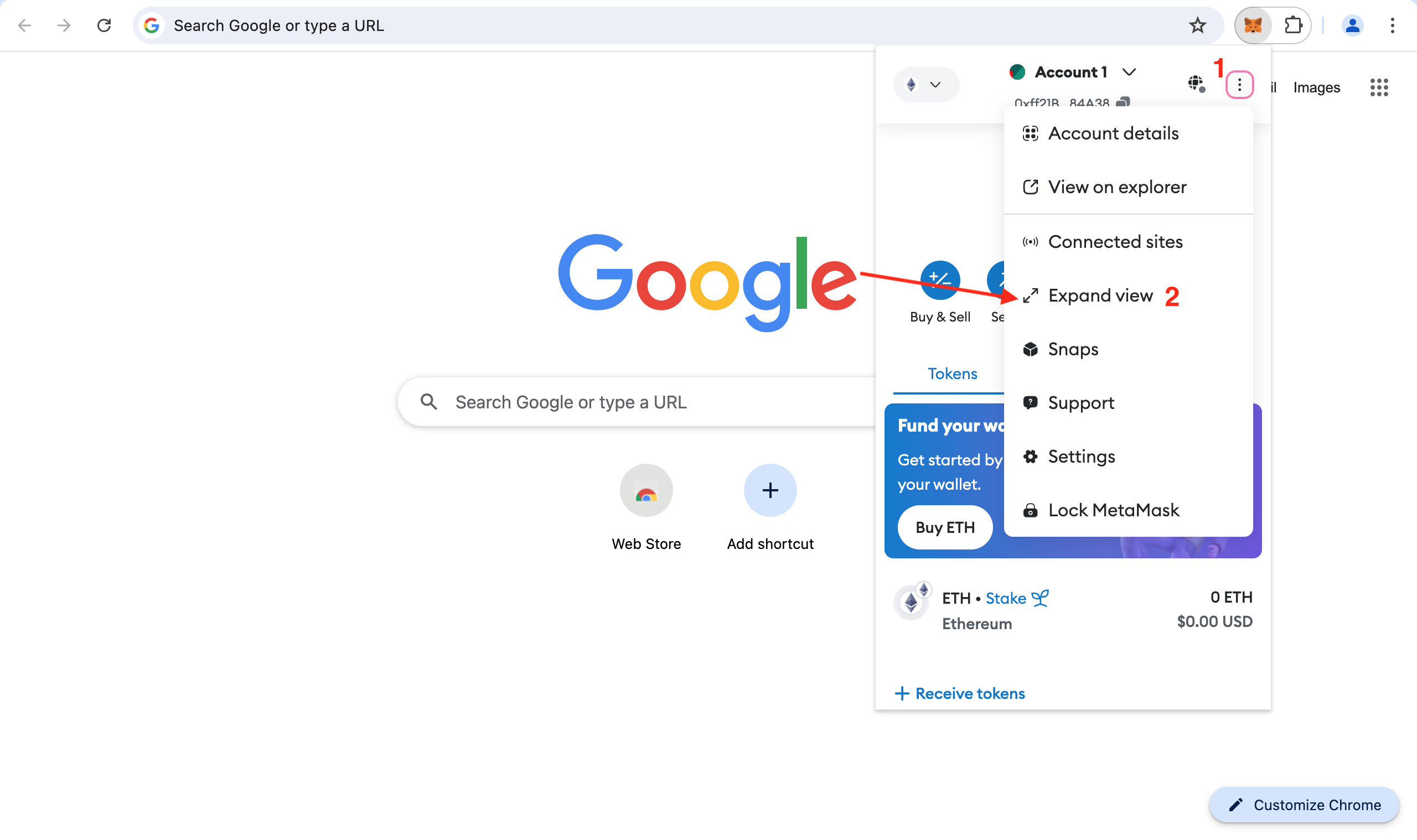
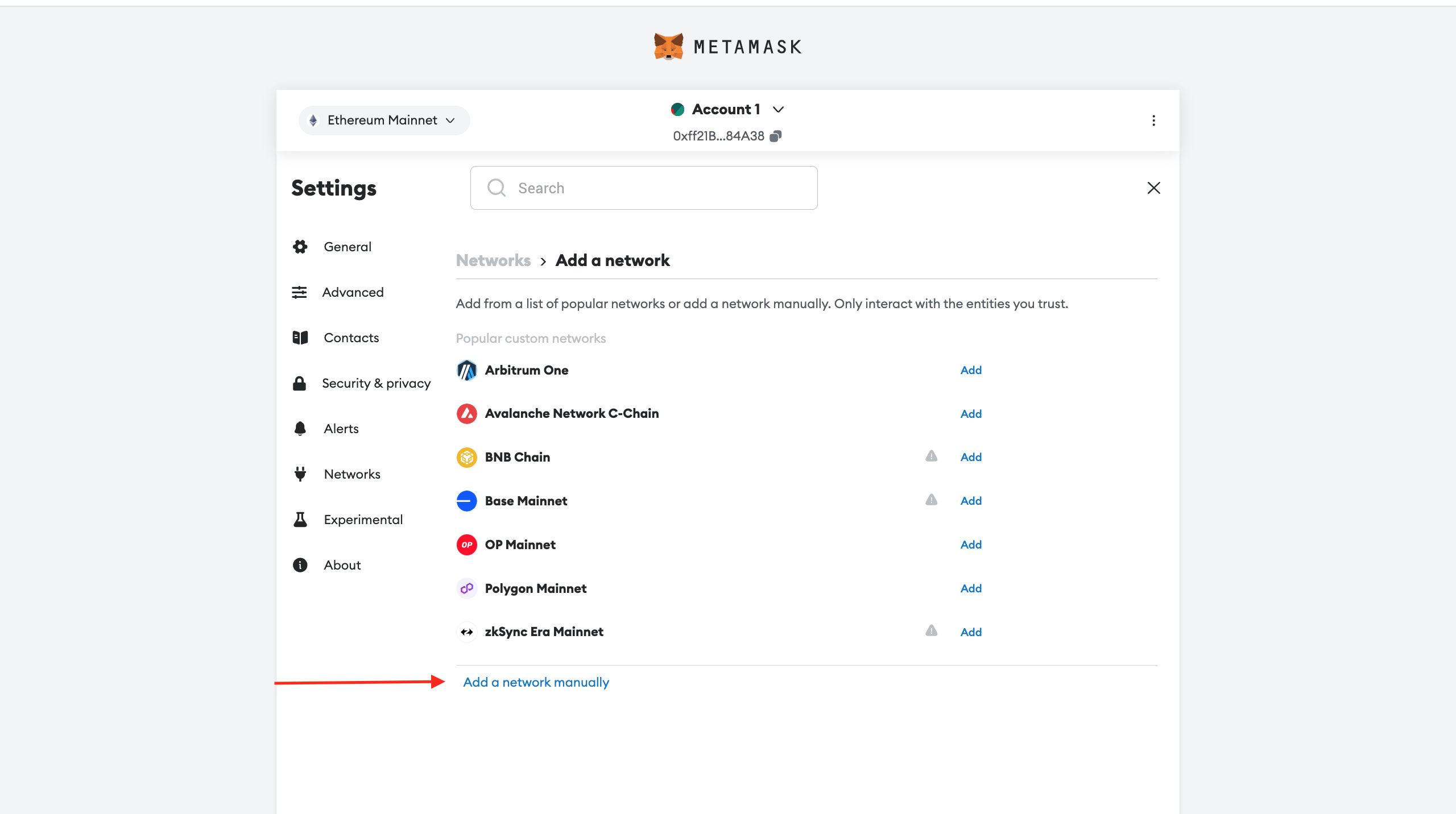
- Go to the Settings
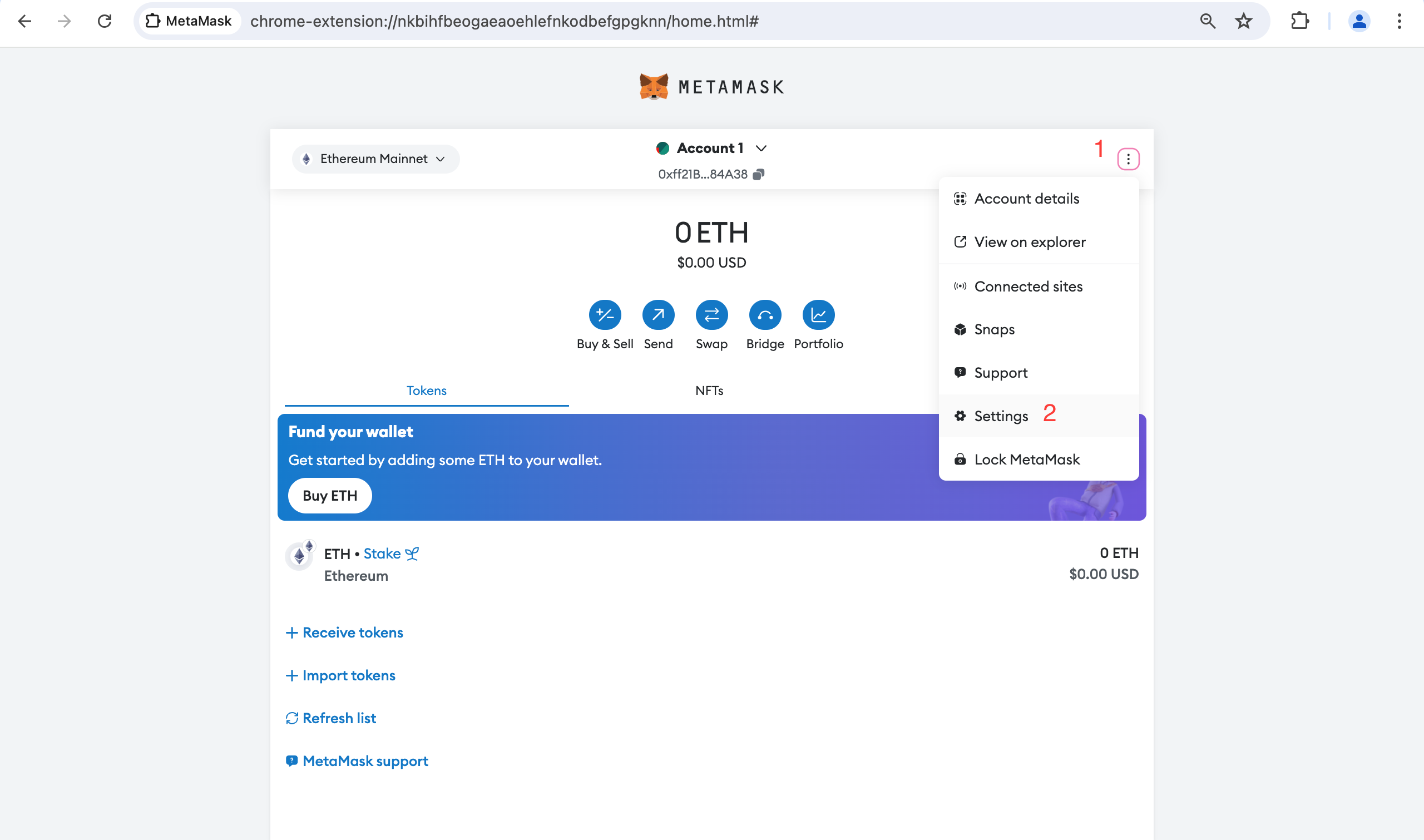
- Click on Network tab and button "Add a network"
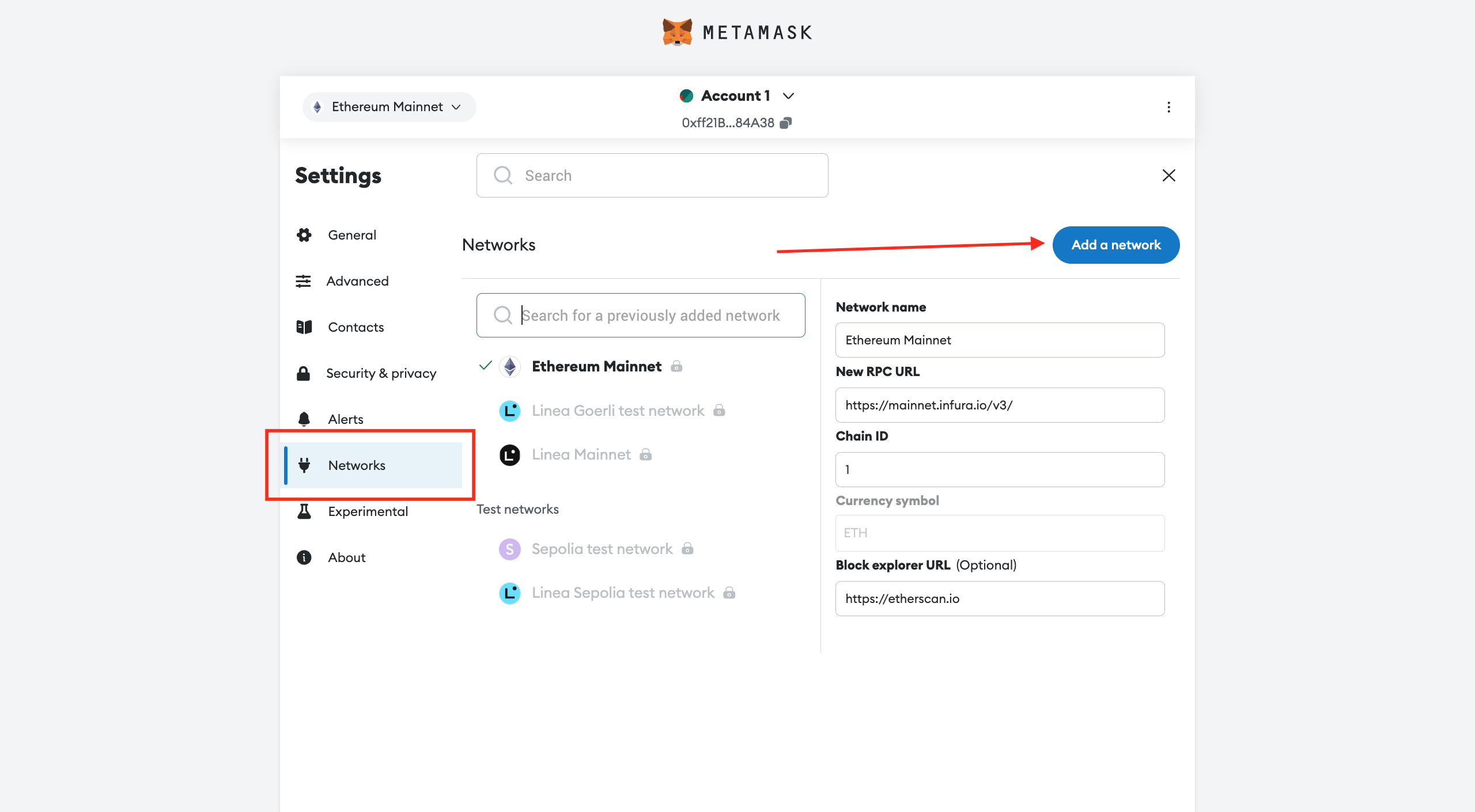
- Click "add a network manually"
-
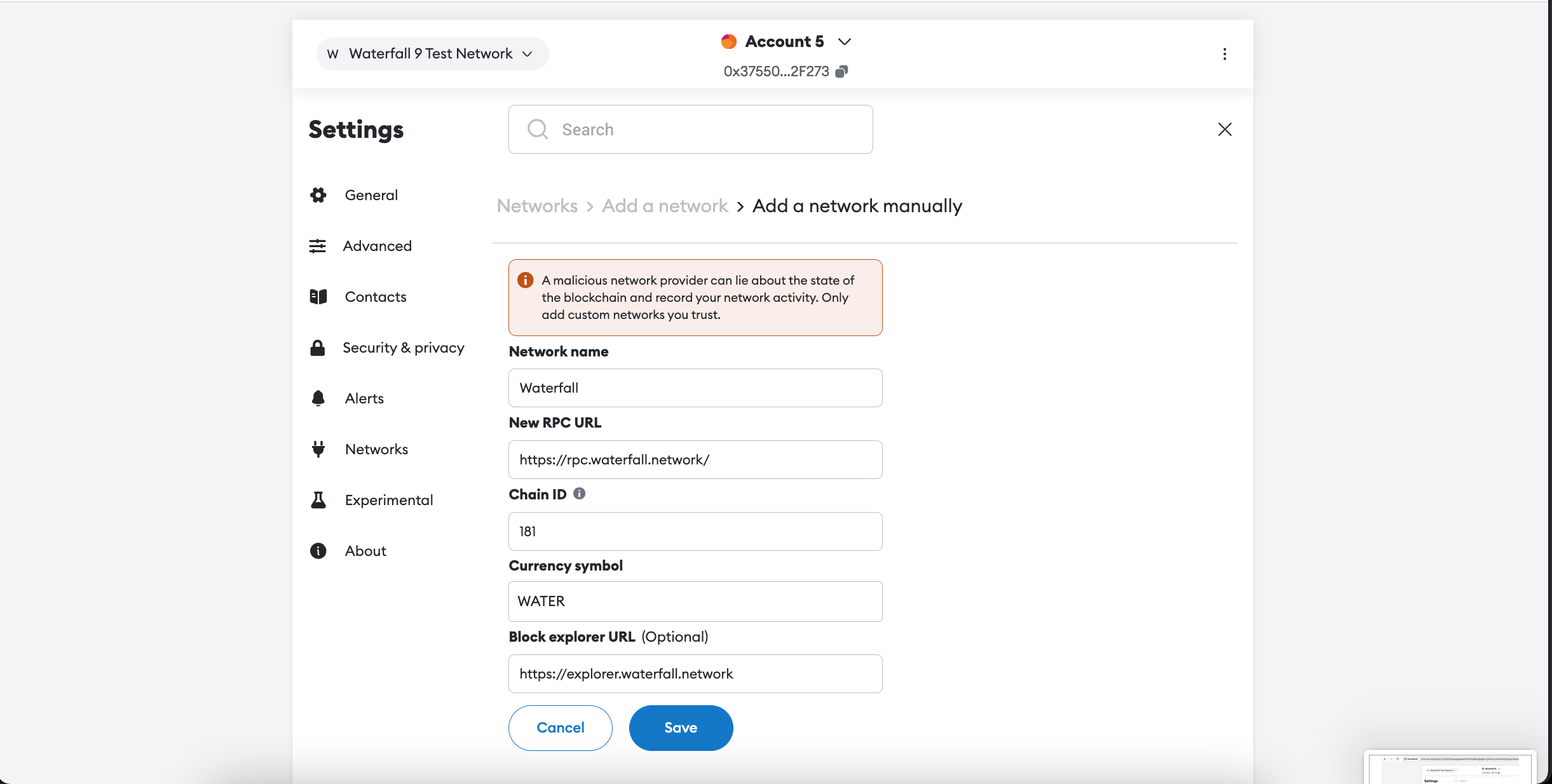
add a new network in Metamask by specifying the following parameters:
- Network Name:
Waterfall - RPC URL:
https://rpc.waterfall.network/ - Chain ID:
181 - Currency symbol:
WATER - Block Explorer URL: https://explorer.waterfall.network
- Network Name:
-
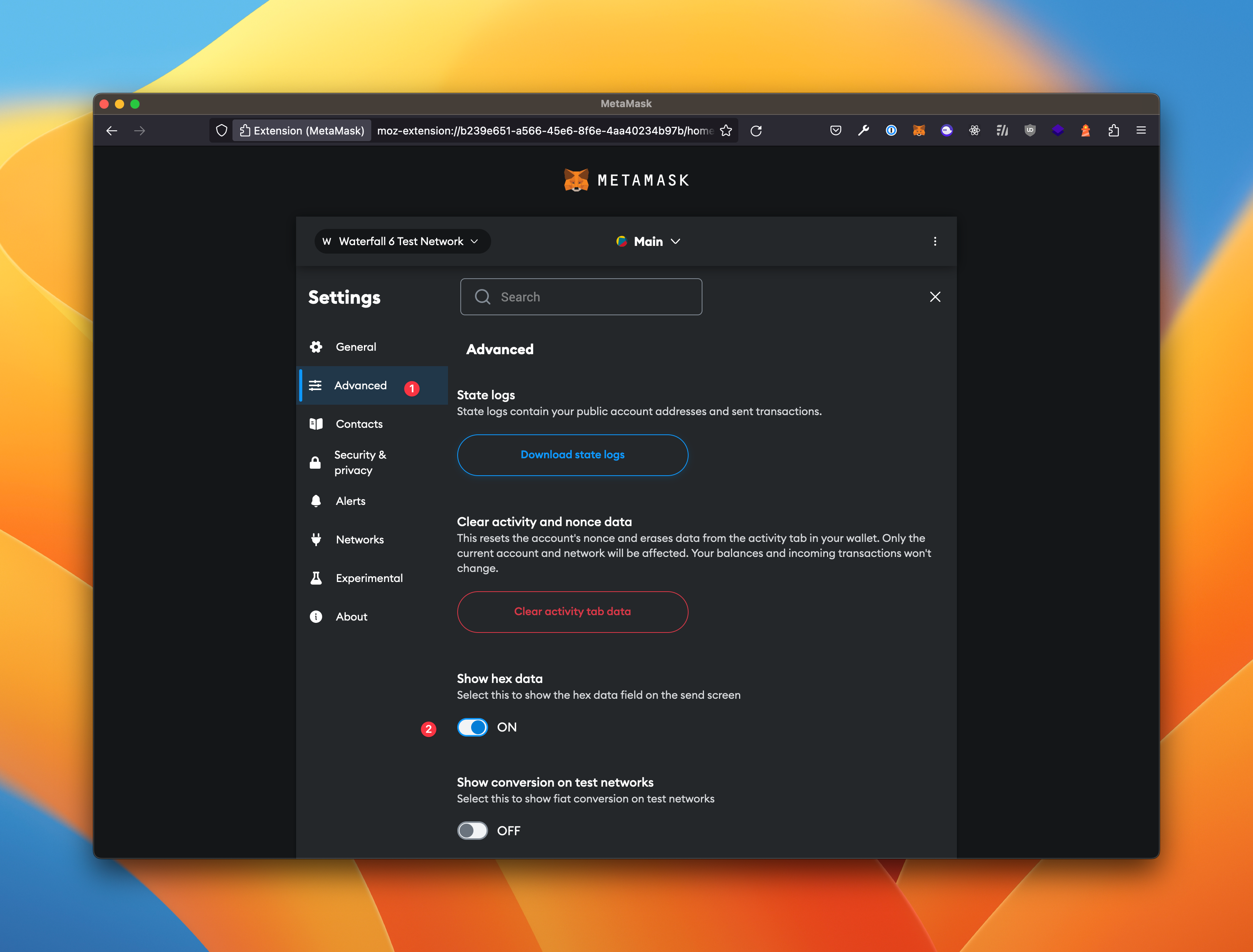
If you want to run a Node, go to the advanced settings in MetaMask and enable the option to display the data field when sending a transaction.
- Create an account address in Metamask if you don't have one already
- Get 32000 WATER for your account.
Add the first validator
Attention
Please note that activation time can range from one to two hours. It's normal for the validator not to change status immediately.
Generate keys if you don't have already mnemonic phrases to add a new first validator to your node by running the following command in the terminal:
docker exec -it wf /opt/wf/sh/add.sh new-mnemonic <withdrawals address>
Example:
docker exec -it wf /opt/wf/sh/add.sh new-mnemonic 0x30c35895FE0f7768A261b5326e4332cBb4556Ba3
Save next phrases to restore keys in future:

surge flash want space soul alien arm refuse album between army clump artwork nothing crush blast slush roof ginger admit outdoor degree guess broom

time="2026-09-12 12:04:58" level=warning msg="Running on Waterfall Consensus Mainnet" prefix=flags
time="2026-09-12 12:04:58" level=info msg="Successfully created new wallet" prefix=accounts wallet-path="/opt/wf/data/coordinator/wallet"
time="2026-09-12 12:04:59" level=info msg="Successfully imported validator key(s)" prefix=local-keymanager publicKeys=0x8ba4cdfa21d3

Generated new Validator #0:
  Coordinator public key: 0x8ba4cdfa21d30840e63feac8deafaf341fb6748a8ee960b7efb144f48fd1fba23b3d05cad2ab44209374ef58506be110
  Verifier address: 0x8a0b75c4b00f52d94a0665273ea5d82c25a06acf
  Withdrawal address: 0x30c35895fe0f7768a261b5326e4332cbb4556ba3
  Signature: 0xac8545e319dec861631047d6747175b033d548b50d55140d433809e25ae3396c2ff28a9acf42881f0f93133b5b3e8e1a18c5a29e95a00f4ffd779a5e89d2002a3f4299e87c62be1329bba942264b985309bd3e568b69548368a8ed00c3d22435

Send tx by Metamask to activate Validator:
  To: 0x329c3A3d65Ab0bE08c6eff6695933391Cfc02cCA
  Value: 32000 WATER
  Data: 0xf4018ba4cdfa21d30840e63feac8deafaf341fb6748a8ee960b7efb144f48fd1fba23b3d05cad2ab44209374ef58506be1108a0b75c4b00f52d94a0665273ea5d82c25a06acf30c35895fe0f7768a261b5326e4332cbb4556ba3ac8545e319dec861631047d6747175b033d548b50d55140d433809e25ae3396c2ff28a9acf42881f0f93133b5b3e8e1a18c5a29e95a00f4ffd779a5e89d2002a3f4299e87c62be1329bba942264b985309bd3e568b69548368a8ed00c3d22435
Add more validators
Generate keys if you already have mnemonic phrases to add a new validator to your node by running the following command in the terminal:
docker exec -it wf /opt/wf/sh/add.sh existing-mnemonic "<mnemonic>" <withdrawals address>
Example:
docker exec -it wf /opt/wf/sh/add.sh existing-mnemonic "surge flash want space soul alien arm refuse album between army clump artwork nothing crush blast slush roof ginger admit outdoor degree guess broom" 0x30c35895FE0f7768A261b5326e4332cBb4556Ba3
time="2026-09-12 12:11:23" level=warning msg="Running on Waterfall Consensus Mainnet" prefix=flags
time="2026-09-12 12:11:24" level=info msg="Successfully imported validator key(s)" prefix=local-keymanager publicKeys=0x85837ad9d7e6

Generated new Validator #1:
  Coordinator public key: 0x85837ad9d7e62241555f4a0f8fbd767b51582ca4c7a99e58949c2cf1fef36e6750b42cbce97e92647691f6520e35e58e
  Verifier address: 0xa5190f04378fb40594be0394eb75019f099e70fe
  Withdrawal address: 0x30c35895fe0f7768a261b5326e4332cbb4556ba3
  Signature: 0x8288fcf30ca8345e193f3ba956620531c18db6264eec8bcba25b985842c10266d84c5c83d09ec2965e746f11c9e33694084d443362ed0a4a3e9a7e01bd8b726315aef4e58cff65e5cdf8a31029866bc5c6f2da70ce5c80e59b38b79d07f5fe47

Send tx by Metamask to activate Validator:
  To: 0x329c3A3d65Ab0bE08c6eff6695933391Cfc02cCA
  Value: 32000 WATER
  Data: 0xf40185837ad9d7e62241555f4a0f8fbd767b51582ca4c7a99e58949c2cf1fef36e6750b42cbce97e92647691f6520e35e58ea5190f04378fb40594be0394eb75019f099e70fe30c35895fe0f7768a261b5326e4332cbb4556ba3b40601fa62c2682e498ac4005592097e0b1dd840884f6b4bcfdf55db99b6768cce98f1f9c5b3032a447bb9ea79a01297094bbeccdac4a86720969496a916c11416b0fd757345dc6c37b509d537729216278f4b6496808a73b879614f2ad5d9ab
Activate the validator
If the node is running and synchronized (check the result of the status command), you can activate the Validator. If you activate the Validator before the node is synchronized, you will incur penalties.
Generate data for the transaction by running the following command in the terminal, or use the information from the previous steps:
docker exec -it wf /opt/wf/sh/deposit.sh <validators index>
docker exec -it wf /opt/wf/sh/deposit.sh 0
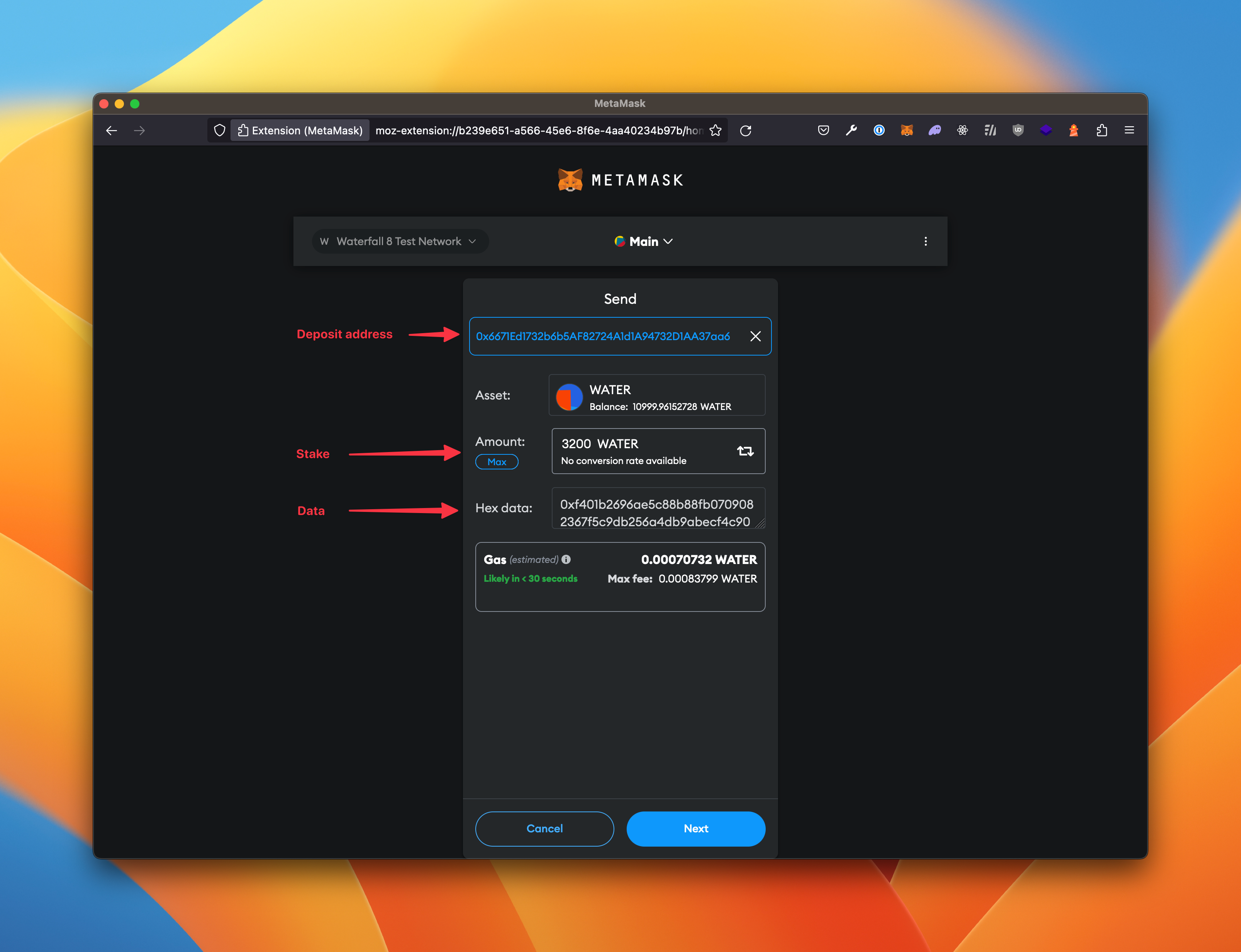
Send tx by Metamask to activate Validator:
  To: 0x329c3A3d65Ab0bE08c6eff6695933391Cfc02cCA
  Value: 32000 WATER
  Data: 0xf4018ba4cdfa21d30840e63feac8deafaf341fb6748a8ee960b7efb144f48fd1fba23b3d05cad2ab44209374ef58506be1108a0b75c4b00f52d94a0665273ea5d82c25a06acf30c35895fe0f7768a261b5326e4332cbb4556ba3ac8545e319dec861631047d6747175b033d548b50d55140d433809e25ae3396c2ff28a9acf42881f0f93133b5b3e8e1a18c5a29e95a00f4ffd779a5e89d2002a3f4299e87c62be1329bba942264b985309bd3e568b69548368a8ed00c3d22435
Using MetaMask, send a transaction to the address, with the amount and data obtained in the previous step
After this, execute the status command in the terminal to determine that your validator is running.
docker exec -it wf /opt/wf/sh/status.sh
Main:
  Node ID: 4b5f2d921489551941b5e48a370ef858957a64e698c14b06036f27774cbc8283
  The node is synchronized.
  Coordinator version: c89c4f77
  Verifier version: 5307e7d1
  Coordinator peers: 46
  Verifier peers: 21
  Coordinator head: 11550210
  Verifier head: 11550208

Validator #0 (1842):
  Label: null
  Coordinator public key: 0x8ba4cdfa21d30840e63feac8deafaf341fb6748a8ee960b7efb144f48fd1fba23b3d05cad2ab44209374ef58506be110
  Verifier address: 0x8a0b75c4b00f52d94a0665273ea5d82c25a06acf

  Can Withdraw: 0x30c35895fe0f7768a261b5326e4332cbb4556ba3
  Receives rewards: 0x30c35895fe0f7768a261b5326e4332cbb4556ba3=100%
  Can Exit: 0x30c35895fe0f7768a261b5326e4332cbb4556ba3
  Receives stake: 0x30c35895fe0f7768a261b5326e4332cbb4556ba3=100%
  Compare with state: true

  Coordinator status: active_ongoing
  Stake: 32000.000000000 WATER
  Coordinator balance: 32009.661205673 WATER

  Verifier status: active
  Verifier balance: 0.07782009910185 WATER
The number in brackets after the validator index — Validator #0 (1842) — is the validator's
index in the coordinator state. It appears once the validator is known on chain.
Delegate stake
In v2 the ownership of a stake and of its rewards can be split between several addresses.
The rules are written into the deposit transaction when the keys are generated, so they have
to be prepared before you run add.sh or import.sh.
-
A directory named
configappears inside your data directory as soon as the node is started for the first time. It holdsconfig.json— the list of validators on this node, written the first time keys are generated — and any delegation rule files you put there. -
Create a rule file in that directory, for example
~/.wf/config/delegating_stake.json:
{
  "rules": {
    "profit_share": {
      "0xee22555a22A7fd2eBA102f6200695F75ab28C4b6": 90,
      "0x30c35895FE0f7768A261b5326e4332cBb4556Ba3": 10
    },
    "stake_share": {
      "0xee22555a22A7fd2eBA102f6200695F75ab28C4b6": 100
    },
    "exit": [
      "0xee22555a22A7fd2eBA102f6200695F75ab28C4b6",
      "0x30c35895FE0f7768A261b5326e4332cBb4556Ba3"
    ],
    "withdrawal": [
      "0xee22555a22A7fd2eBA102f6200695F75ab28C4b6",
      "0x30c35895FE0f7768A261b5326e4332cBb4556Ba3"
    ]
  }
}
- `profit_share` — how the rewards are split, in percent. Must add up to 100.
- `stake_share` — how the stake is returned after exit, in percent. Must add up to 100.
- `exit` — the addresses allowed to send the deactivation transaction.
- `withdrawal` — the addresses allowed to send the withdrawal transaction.
- `trial_period` and `trial_rules` are optional. When you omit them, the node fills in
  `trial_period: 0` and copies `rules` into `trial_rules`.
You can keep several rule files side by side and pick one per validator.
- Pass the file name as the last argument when generating keys:
docker exec -it wf /opt/wf/sh/add.sh existing-mnemonic "<mnemonic>" <withdrawals address> delegating_stake.json
- Check the result:
docker exec -it wf /opt/wf/sh/status.sh 1

Validator #1:
  Label: null
  Coordinator public key: 0x85837ad9d7e62241555f4a0f8fbd767b51582ca4c7a99e58949c2cf1fef36e6750b42cbce97e92647691f6520e35e58e
  Verifier address: 0xa5190f04378fb40594be0394eb75019f099e70fe

  Can Withdraw: 0x30c35895fe0f7768a261b5326e4332cbb4556ba3,0xee22555a22a7fd2eba102f6200695f75ab28c4b6
  Receives rewards: 0x30c35895fe0f7768a261b5326e4332cbb4556ba3=10%, 0xee22555a22a7fd2eba102f6200695f75ab28c4b6=90%
  Can Exit: 0x30c35895fe0f7768a261b5326e4332cbb4556ba3,0xee22555a22a7fd2eba102f6200695f75ab28c4b6
  Receives stake: 0xee22555a22a7fd2eba102f6200695f75ab28c4b6=100%
  Compare with state: unknown

  The coordinator has not been activated

  Verifier status: pending_activation
  Verifier balance: 0 WATER
Compare with state stays unknown until the deposit transaction is processed. After
that it becomes true when the rules on chain match the ones stored on the node.
Rules cannot be changed later
The delegation rules are part of the deposit transaction. Once a validator is activated they can no longer be edited — you would have to exit the validator and create a new one.
Exit and withdraw with delegation
When rules are in place, exit.sh and withdraw.sh list every address that is allowed to
send the transaction:
docker exec -it wf /opt/wf/sh/exit.sh 1

Send tx by Metamask:
  From: 0xee22555a22A7fd2eBA102f6200695F75ab28C4b6,0x30c35895FE0f7768A261b5326e4332cBb4556Ba3
  To: 0x329c3A3d65Ab0bE08c6eff6695933391Cfc02cCA
  Value: 0 WATER
  Data: 0xf403852e9616f719ce3f7bd9e48eae911c5a49a3f514a6141f5ca39c853cb9e7e71fb2abc060f09f0038436eb8bd2370f8379efc6c79ce9a565751861cf4c8fc46f8b5946d5b
docker exec -it wf /opt/wf/sh/withdraw.sh 1 0

Send tx by Metamask:
  From: 0xee22555a22A7fd2eBA102f6200695F75ab28C4b6,0x30c35895FE0f7768A261b5326e4332cBb4556Ba3
  To: 0x329c3A3d65Ab0bE08c6eff6695933391Cfc02cCA
  Value: 0 WATER
  Data: 0xf4069efc6c79ce9a565751861cf4c8fc46f8b5946d5b
Send the transaction from any one of the listed addresses — the chain accepts it from each of them, not only from the first.
These two examples are only about who may sign. For what the arguments mean, and for a real withdrawal amount, see Withdraw and Exit below.
Label validators
Labels let you group validators — for example per customer, or per batch of imported keys — and then address the whole group at once.
Assign a label to every validator on the node:
docker exec -it wf /opt/wf/sh/label.sh my-node
Done. 1 Validators have been updated.
Assign a label to a range of validators:
docker exec -it wf /opt/wf/sh/label.sh my-node <from> <to>
docker exec -it wf /opt/wf/sh/label.sh my-node 3 7
The label then shows up in status.sh and can be used to filter it:
docker exec -it wf /opt/wf/sh/status.sh "" "" my-node
label.sh writes a backup of the previous validator list to
~/.wf/config/config_bak_<timestamp>_<pid>.json before it makes any change. The ten most recent
backups are kept.
Import keys
Keys generated outside the node — for example with wf-cli — can be imported into a running
node.
- Generate keys by wf-cli (instruction)
- Copy keys into a directory inside
config, for example~/.wf/config/keys-123:All three of.wf/config/keys-123 ├── coordinator │ ├── validator_keys │ │ ├── deposit_data.json │ │ └── keystore-m_12381_3600_0_0_0-*.json │ └── password.txt └── gwat ├── keystore │ └── UTC--*--<verifier address> ├── address.txt └── password.txtcoordinator/validator_keys/deposit_data.json,gwat/password.txtandgwat/address.txtmust be present, otherwise the import stops and tells you which file is missing. - Run import
Optionally attach delegation rules and a label:
docker exec -it wf /opt/wf/sh/import.sh keys-123To attach only a label, pass it in place of the rules file — the script recognises that the second argument is not an existing file and treats it as a label:docker exec -it wf /opt/wf/sh/import.sh keys-123 delegating_stake.json my-nodeThe system will responddocker exec -it wf /opt/wf/sh/import.sh keys-123 my-nodeThe import also putsPrepare Validator: 83c0a10da12cdde451a8a143060e369a748d76fcf9b1e6a83d18cbcad7fe27fdc9c6bb3be9919f628d1b272f38aff3ba time="2026-09-12 12:23:40" level=warning msg="Running on Waterfall Consensus Mainnet" prefix=flags time="2026-09-12 12:23:41" level=info msg="Successfully imported validator key(s)" prefix=local-keymanager publicKeys=0x83c0a10da12c Done. 1 Validators have been imported.gwat/password.txtinto the order the verifier reads it — see Check verifier key passwords. If it cannot, it prints a warning and the command to run.
Importing the same directory twice is safe — validators that are already on the node are skipped:
Validator already exists: 83c0a10da12cdde451a8a143060e369a748d76fcf9b1e6a83d18cbcad7fe27fdc9c6bb3be9919f628d1b272f38aff3ba
Done. 0 Validators have been imported.
docker exec -it wf /opt/wf/sh/status.sh
Validator #2:
  Label: null
  Coordinator public key: 0x83c0a10da12cdde451a8a143060e369a748d76fcf9b1e6a83d18cbcad7fe27fdc9c6bb3be9919f628d1b272f38aff3ba
  Verifier address: 0xae5d571667ff5e2b1f2e80e4b4ce38587aeb349e

  Can Withdraw: 0x30c35895fe0f7768a261b5326e4332cbb4556ba3
  Receives rewards: 0x30c35895fe0f7768a261b5326e4332cbb4556ba3=100%
  Can Exit: 0x30c35895fe0f7768a261b5326e4332cbb4556ba3
  Receives stake: 0x30c35895fe0f7768a261b5326e4332cbb4556ba3=100%
  Compare with state: unknown

  The coordinator has not been activated

  Verifier status: pending_activation
  Verifier balance: 0 WATER
Imported validators still have to be activated — see Activate the validator.
Export keys
export.sh writes the validator list of this node into a deposit_data.json file, which can
be fed to tooling that works with deposit data.
- Create the target directory inside
config:mkdir -p ~/.wf/config/backup - Export:
docker exec -it wf /opt/wf/sh/export.sh backupDone. 1 Validators have been exported. - The file lands in
~/.wf/config/backup/deposit_data.json.
The command takes an optional label and range. Note that the order is not the same as in
status.sh, which takes the range first and the label last:
docker exec -it wf /opt/wf/sh/export.sh backup <label> <from> <to>
The export contains the deposit data only — labels and delegation rules are stripped out.
If deposit_data.json already exists in the target directory the command refuses to
overwrite it and stops with ... is already exists.
This is not a key backup
export.sh exports deposit data, not private keys. The only way to restore validators is
the mnemonic phrase you saved when you ran add.sh new-mnemonic.
Offboarding
Withdraw
Attention
Please note that withdrawal processing time can take up to an hour. It's normal for coins not to be withdrawn immediately.
To withdraw your rewards, run the following command:
docker exec -it wf /opt/wf/sh/withdraw.sh <validators index> <amount in WATER>
Example:
docker exec -it wf /opt/wf/sh/withdraw.sh 0 6.703440448

TxHash: "0xa603a6b66a5f2f3d27185a70c3ce25ebccf610e81438be17a0bd51ec8857b87f"
When the withdrawal address is not managed by this node, the command prints a transaction for you to send from MetaMask instead:
docker exec -it wf /opt/wf/sh/withdraw.sh 1 3.327661056

Send tx by Metamask:
  From: 0x30c35895fe0f7768a261b5326e4332cbb4556ba3
  To: 0x329c3A3d65Ab0bE08c6eff6695933391Cfc02cCA
  Value: 0 WATER
  Data: 0xf406b68a027ffb5089ed1573a301cfa4d1e2f273094c2e2e3a1987c80000
Transfer
To transfer the rewards to yourself, run the following command:
docker exec -it wf /opt/wf/sh/transfer.sh <validators index> <to address> <amount in WATER>
Example:
docker exec -it wf /opt/wf/sh/transfer.sh 0 0x4d76c92aa070c5fbdef46b309737cf1b42eb07ca 6.7

TxHash: "0x90228c83b80b26128405bda59a9b80a89e7ceeba5cb6b406e06e37649e10f866"
Exit
Attention
Please note that deactivation time can range from one to two hours. It's normal for the validator not to change status immediately.
To deactivate the validator, run the following command:
docker exec -it wf /opt/wf/sh/exit.sh <validators index>
Example:
docker exec -it wf /opt/wf/sh/exit.sh 0

TxHash: "0xe94baf143ee61ed30671cf7b53681fa02206d1b79799acdb59a83f3ec0127815"
After the transaction is processed, Coordinator status moves to active_exiting and then
to withdrawal_possible, and Verifier status becomes exited.
Maintenance
Re-seed the node from a snapshot
snapshot.sh replaces the local chain databases with the latest published snapshot. Seeding
a brand new node is covered in How to sync faster?; this section is
the full command set, and what changes once the node carries validators. Re-seed an existing
node when it has fallen far behind, or when its databases are damaged.
The download, checksum and unpack all run while the node keeps working. Only the final swap needs the node stopped, and that is a directory rename — it takes seconds.
Only gwat/gwat and coordinator/beaconchaindata are replaced. Your wallet, keystores and
everything under config/ are untouched.
snapshot.sh apply looks at whether your validators are actually active on chain, and
only gets in the way when it needs to:
- No validators, or keys that were generated but never activated. They have no signing history, so there is nothing to protect. The command runs without further ado.
- Active validators. You are asked to confirm with
--force, because re-seeding costs you every attestation until the node has caught up to the chain head. Only the chain databases are replaced — the slashing protection history incoordinator/wallet/direct/validator.dbis kept, and with it in place a validator refuses to sign anything it has signed before rather than risk a slashable vote. - Active validators and no
validator.db. You get a blunt warning: that database is what guarantees a validator never signs twice for the same epoch, and a snapshot rolls the chain view back. Restore it if you still have it.--forcestill lets you through if you are certain those keys are not signing anywhere else. - Coordinator not answering. The status cannot be determined, so the command asks you to
check first or pass
--force.
Re-seeding is worth doing when the node is further behind than the snapshot is, or when its databases are damaged — not as routine maintenance.
-
See what is published and what is staged locally:
docker exec -it wf /opt/wf/sh/snapshot.sh status -
Download, verify and unpack. The node keeps running throughout, and an interrupted transfer resumes where it stopped:
The archive is checked against the SHA-256 published in the snapshot manifest; a corrupt download is deleted rather than used.docker exec -it wf /opt/wf/sh/snapshot.sh downloadFree space
The archive and its unpacked copy exist side by side until the unpack finishes, so this needs roughly twice the archive size in free space.
snapshot.sh downloadchecks before it starts and stops if there is not enough.Short on space?
--streamunpacks while it downloads and never keeps the archive, so it needs only about the snapshot size. The checksum is verified on the same stream once the unpack finishes, and a bad download is deleted. The trade-off: an interrupted transfer starts over instead of resuming.docker exec -it wf /opt/wf/sh/snapshot.sh download --stream -
Switch over. This stops the node, swaps the databases and starts it again:
The previous databases are kept next to the new ones asdocker exec -it wf /opt/wf/sh/snapshot.sh apply<name>.old_<timestamp>. -
Confirm the node is running on the new state:
docker exec -it wf /opt/wf/sh/status.sh -
Once you are satisfied, free the space taken by the old databases:
docker exec -it wf /opt/wf/sh/snapshot.sh commit
If something is wrong instead, put the previous databases back:
docker exec -it wf /opt/wf/sh/snapshot.sh rollback
Until you run commit or rollback, a second apply is refused — the node always keeps
exactly one set of databases to fall back to.
Keep the validator database small
The coordinator validator keeps a slashing protection history — a record of everything your
validators have signed — in coordinator/wallet/direct/validator.db. Nothing trims it while
the validator runs, so on a node with many validators it grows by gigabytes a week and can
become the largest thing on the disk. Check its size with:
docker exec wf du -h /opt/wf/data/coordinator/wallet/direct/validator.db
When it has grown more than you like, start the history afresh. First see what will happen — this changes nothing:
docker exec -it wf /opt/wf/sh/reset_slashing_protection.sh
It prints the database size and the length of the pause. Then run it in the background:
docker exec -d wf sh -c '/opt/wf/sh/reset_slashing_protection.sh --yes > /opt/wf/data/logs/reset_slashing_protection.log 2>&1'
and follow its progress:
docker exec wf tail -n 20 /opt/wf/data/logs/reset_slashing_protection.log
What it does:
- stops the validator;
- moves
validator.dbaside asvalidator.db.old_<timestamp>; - waits three full epochs — about 10 minutes on mainnet;
- starts the validator with an empty database;
- once the validator has attested again, deletes the old database and reports how much space
was freed. Add
--keep-oldafter--yesto keep it instead.
It runs in the background because of the pause: closing your terminal does not interrupt it.
Why this is safe. After the pause, every attestation your validators make targets a later epoch than anything they signed before the stop, so they cannot sign anything that conflicts with their past and the old history is never needed. The pause is enforced by the validator itself when it starts, so restarting the container or the machine in the middle of the pause does not start it early.
If no attestation appears within 15 minutes after the pause, the old database is kept and the log shows how to put it back. That is expected on a node whose validators are not active yet.
Never while the same keys are running anywhere else
The reset relies on these keys being used by this node only. If the same keys are running — or may recently have run — on another machine, do not reset: an empty history would not protect you from signing something that conflicts with what the other machine signed, and that gets your validators slashed.
Your validators do not attest during the pause, which costs the rewards for about ten minutes.
Why not the validator's built-in pruning
Earlier builds of this image enabled the validator's own history pruning. It only runs when the validator starts, and on a database that has grown for weeks it kept the validator offline for hours after every restart — so it is no longer used.
Check verifier key passwords
Every validator has a verifier key in gwat/keystore, and the node unlocks it with a password
from gwat/password.txt. The verifier does not look the password up by address: it sorts the
key files by name — that is, by the time each key was created — and gives key number i line
number i of the file.
The node scripts add a password at the end of the file. That is right for keys created on this
node, which are always the newest. It goes wrong when older keys join a node: keys imported
with an earlier image, or several nodes merged into one by copying their keystore and
password.txt together. The older keys sort before the existing ones, every password after them
shifts, and the affected keys cannot be unlocked. Nothing stops and nothing crashes: those
validators keep attesting, but skip block creation whenever they are chosen to create a block.
The verifier log shows it as
WARN [..] Failed to unlock account, try again account=0x... error="could not decrypt key with given password"
status.sh prints a warning when it detects this. To check by hand — this takes seconds and
changes nothing:
docker exec -it wf /opt/wf/sh/verifier_passwords.sh check
Verifier keys:        3040  (/opt/wf/data/gwat/keystore)
Password lines:       3040  (/opt/wf/data/gwat/password.txt)
address.txt entries:  3040, of them not in the keystore: 0

PROBLEM: 768 keys get a password line recorded for another key, so gwat cannot unlock them:
    #176    0x7a667b1c27ec04d0be0df0324e6149aaa01329b3  UTC--2024-12-15T14-03-52.959Z--7a66...
    ...
check compares the order of gwat/address.txt with the order of the keys. If the node has no
address.txt — for example, it was assembled by hand — check cannot tell and says so. Then
confirm by decrypting every key with the password it gets. This is exact but slow, about half a
second per key and CPU core, so on a node with thousands of keys run it in the background:
docker exec -d wf sh -c '/opt/wf/sh/verifier_passwords.sh verify > /opt/wf/data/logs/verifier_passwords.log 2>&1'
docker exec wf tail -n 20 /opt/wf/data/logs/verifier_passwords.log
To repair, first see what would change:
docker exec -it wf /opt/wf/sh/verifier_passwords.sh fix --dry-run
then repair:
docker exec -it wf /opt/wf/sh/verifier_passwords.sh fix
fix rewrites password.txt and address.txt in the order the verifier reads them. Before it
writes anything, it decrypts every key that is about to get a different password. If a key's
recorded password does not open it, fix tries the other passwords in the file. If any key
stays unopened, nothing is written, and the output lists the keys whose passwords are missing.
The previous files are kept next to the new ones as password.txt.bak-<timestamp> and
address.txt.bak-<timestamp>. There is no need to restart anything: the verifier re-reads
password.txt whenever it unlocks a key, and the log shows Unlocked account for the repaired
keys as they come up.
Merging keys from several nodes
Do not copy password.txt files together by hand. Add a node's keys with
import.sh, which keeps the order right. If the files are already merged,
run verifier_passwords.sh fix. It works even when the files contain empty lines, when
address.txt is missing, or when the passwords are in the wrong order, as long as every
key's password is somewhere in password.txt.
Stop and start the node
To stop the node:
docker stop wf
To start it again — no need to retype the long docker run command, the container is still
there:
docker start wf
The node is started with --restart unless-stopped, so Docker brings it back automatically
after a reboot or a Docker daemon restart. A node you stopped yourself with docker stop
stays stopped until you start it again.
Reinstall Node
- Stop Node (see instructions above), then remove the container:
docker rm wf - Remove data in home directory
~/.wfby executing the following command in the terminal:rm -R ~/.wf - Pull image (see instructions above)
- Run Node (see instructions above) and other steps in instructions above
Upgrade node
- Stop the node and remove the container. Removing it is what lets you start a new one
from the upgraded image; your data lives in the volume, not in the container.
docker stop wf docker rm wf - Pull image
docker pull registry.waterfall.network/waterfall/protocol/docker:2-mainnet - Run Node (see instructions above)
cd ~docker run --platform linux/amd64 --name wf -d --restart unless-stopped -p 4000:4000 -p 13000:13000 -p 12000:12000/udp -p 30303:30303 -p 30303:30303/udp -p 9545:9545 -p 9546:9546 -v $PWD/.wf:/opt/wf/data registry.waterfall.network/waterfall/protocol/docker:2-mainnet
Transfer validators to another computer
Run this in order
A validator must never sign on two machines at the same time. Remove the validators from the old computer before you restore them on the new one.
- On the new computer, launch the node and wait for full synchronization.
restore.shrefuses to run while either client is still syncing. -
On the old computer, delete all validators with the following command.
This removes the validator keys, the coordinator wallet and the generated validator list (docker exec -it wf /opt/wf/sh/rm.shconfig/config.jsonand its backups). Your own files in~/.wf/config— delegation rule files and imported key bundles — are kept.Give the verifier a moment
rm.shrestarts the verifier, andrestore.shrefuses to run until it has caught back up. If you run both on the same machine, wait untilstatus.shreportsThe node is synchronized.again before restoring.- Make sure that there are no validators
docker exec -it wf /opt/wf/sh/status.shMain: Node ID: a6032d0be6164bb2d534c4b5a34ff71d11be9f6af927fdaafc3b700f914a958a The node is synchronized. Coordinator version: c89c4f77 Verifier version: 5307e7d1 Coordinator peers: 46 Verifier peers: 21 Coordinator head: 11550210 Verifier head: 11550208 Keys weren't generated - On the new computer, run the procedure to restore validators. In v2 you must also pass the
number of validators to restore:
Example — restore two validators:
docker exec -it wf /opt/wf/sh/restore.sh "<mnemonic>" <count>docker exec -it wf /opt/wf/sh/restore.sh "surge flash want space soul alien arm refuse album between army clump artwork nothing crush blast slush roof ginger admit outdoor degree guess broom" 2Without the count the command stops withRestored Validator #0: Coordinator public key: 0xb2696ae5c88b88fb0709082367f5c9db256a4db9abecf4c9045e58151ad51126ea0ce7cbff76fa4524cfb66395ba168b Verifier address: 0x41f4bbc7feb1ed211d97adab2137c837f5860266 Withdrawal address: 0x41f4bbc7feb1ed211d97adab2137c837f5860266 Restored Validator #1: Coordinator public key: 0xab317784df7c9bcc4d0d85a9475593b3e71164a46f3a40c02af73e1d8422b525f53120c77b5cca0b7ad8bee52d696159 Verifier address: 0xb68a027ffb5089ed1573a301cfa4d1e2f273094c Withdrawal address: 0x30c35895fe0f7768a261b5326e4332cbb4556ba3 Delegating rules: recovered from chain time="2026-09-12 12:31:07" level=warning msg="Running on Waterfall Consensus Mainnet" prefix=flags time="2026-09-12 12:31:07" level=info msg="Successfully created new wallet" prefix=accounts wallet-path="/opt/wf/data/coordinator/wallet" time="2026-09-12 12:31:09" level=info msg="Successfully imported validator key(s)" prefix=local-keymanager publicKeys=0xb2696ae5c88b0xab317784df7c 2 Validators were restored. Delegation rules were read back from the chain. Labels are kept on the node only - there is nothing on the chain to read them back from. Set them again with label.sh.Please provide the count of validators to restore.
- Make sure that there are no validators
Validators that the mnemonic produces but that are not found on chain are reported as
Restored Not Found Validator #N and are still added to the node.
Delegation rules are read back from the chain, so status.sh reports
Compare with state: true for a restored delegating validator. This only works for
validators the chain knows about: one that was created with delegation rules but never
activated is reported as Restored Not Found and comes back without them, because the
rules only reach the chain with the activating deposit.
Labels live on the node and nowhere else, so restoring cannot bring them back — set them
again with label.sh.
Restoring only works on a node that has no validators yet. If there are any, the command
stops with You can restore only on the node where there are no validators.
Deploy Smart-Contract
To deploy smart-contract read instructions
Common Issues and Solutions
-
If the peers of the Coordinating node disappeared during synchronization, please restart the Docker
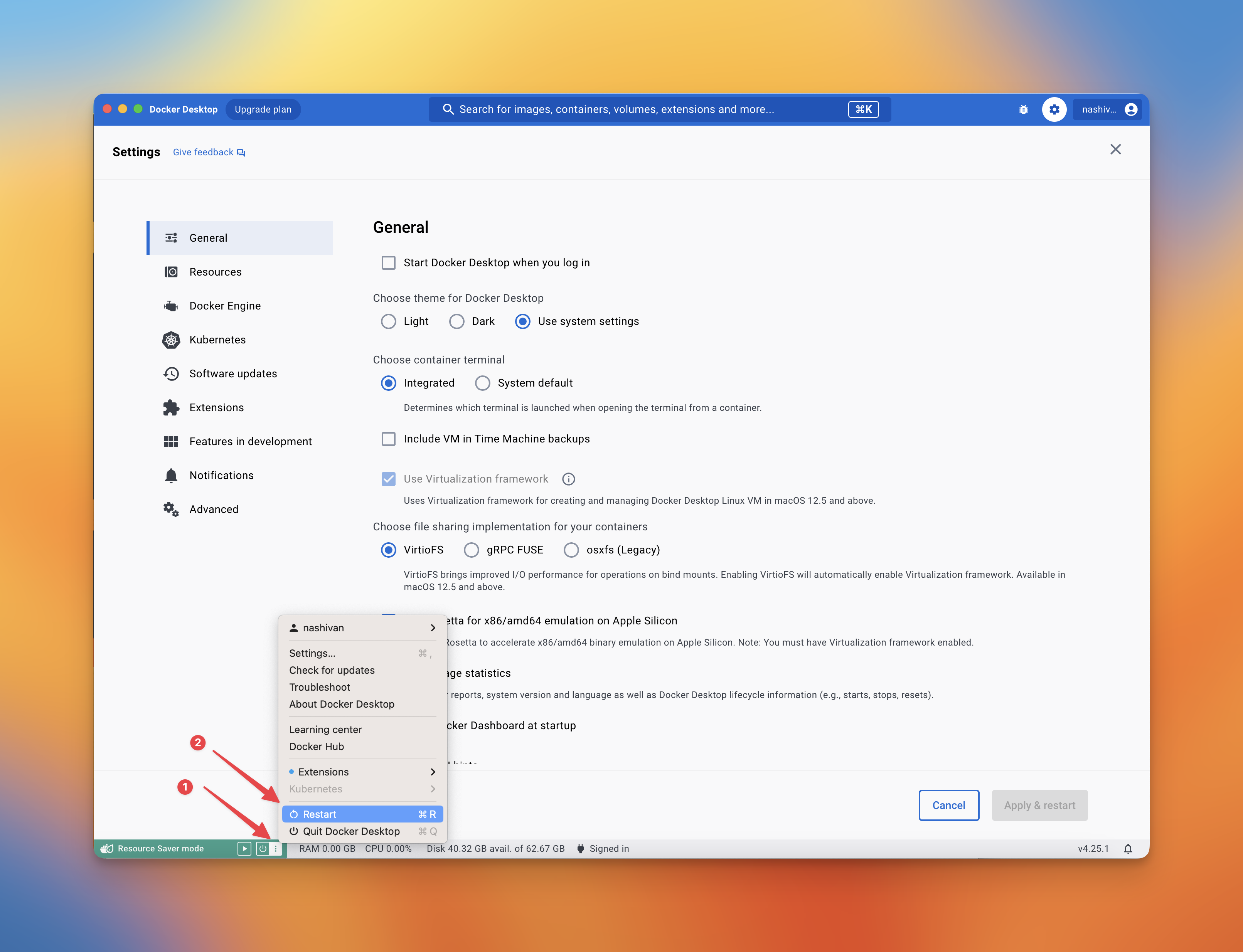
-
Is there an instruction for Linux? For the Linux platform, please install Docker using the instructions. Afterwards, follow our standard installation instruction.
-
What are the minimum hardware requirements? The minimum hardware requirements include a CPU with at least 2 cores and 8 GB of RAM. Faster hardware (mainly CPU and RAM) is preferable for better performance. The number of Validators you have should match the hardware resources you possess, and a faster internet speed is also essential. The HDD size doesn't increase when you add additional Validators.
-
How many Validators can I run on a one node(one PC)? For now, we guarantee stable work for 16 Validators on 1 node.
-
Can I run 2 nodes on 2 PCs with the same IP. Yes, you can.
-
Why is the synchronization taking so long? The synchronization process is time-consuming due to its comprehensive nature, involving the download of the entire network state.
-
Why Verifier balance is 0? Time must pass for the coordinator's balance to change after 4 eras. This will take approximately an hour.
-
Is it possible for my node to incur penalties? If your node is not running and not synchronized (e.g., your PC is off or in sleep mode, the connection is interrupted, or you turned off the SSD with a snapshot), you will receive penalties. If your clock is significantly behind or ahead, the information you receive from other network participants may be invalid. As a result, your validator will not function correctly and will incur penalties.
-
coordinator-validatorshowsFATALin the container logs. This is expected on a node that has no validator keys yet. The process starts once you runadd.sh,import.shorrestore.sh. -
status.shprints a warning about/opt/wf/data/config. The node was started with the old three-volume layout, so the validator list is not on a volume you control and will be lost on the next restart. Restart it with a single volume:-v $PWD/.wf:/opt/wf/data. See Migrate a Docker node from v1 to v2. -
How do I check the node's health from a script? The container serves two probes on
http://127.0.0.1:8080/inside its network namespace. Publish the port with-p 8080:8080to reach them from the host./— readiness:200once the node is synced,503while it is not./live— liveness:200while the clients are alive and answering,503when one of them has crashed or stopped responding. A node that is still syncing stays200here, and so does one whose processes were stopped on purpose bysnapshot.sh applyorreset_slashing_protection.sh. On503the body carries the reason, for example{"status": false, "reason": "gwat is FATAL"}.
Docker's own
HEALTHCHECKuses/live, sodocker psreportsunhealthyfor a broken node but not for one that is merely syncing. -
The verifier log shows
Failed to unlock account … could not decrypt key with given password. Some verifier keys get another key's password, usually after keys from several nodes were merged into one. Those validators skip block creation. See Check verifier key passwords.